Edit the clip by editing its words
Every clip Katto makes opens in an editor where the transcript is the main control. Select a sentence and delete it, and that part of the video is gone. Correct a word, and the captions change with it. You still have a timeline when you need one, but most fixes on a short clip are about what is said, so that is where the editor starts.
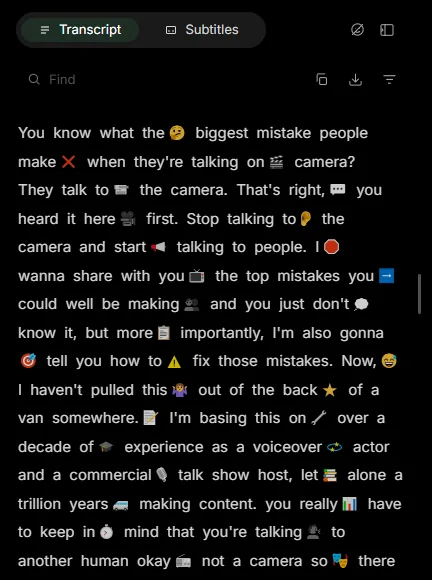
Delete words, and the video follows
Select a word, a phrase or a whole aside in the transcript and remove it. The editor turns those words into cuts on the timeline, previews the result straight away, and sends the same cuts to the render when you export. A false start, a repeated sentence or an off-topic tangent goes in a couple of clicks, without hunting for it on a waveform.
Removed words are not lost. Undo brings them back, and the change list shows how many words you cut before you export.
Fix a word once, everywhere
Names and unusual terms are where transcription slips first. A correction pass runs before you open the clip, and anything it missed you fix directly in the transcript. The captions read from that same text, so a guest's name is corrected once instead of once per caption line.
What else the editor does
Three levels, from natural to tight. The preview shows the cut version before anything is rendered.
51 styles, 16 of them on the free plan, with emojis that can be moved or removed word by word. The preview uses the same renderer as the export.
Each shot keeps its own framing: full, split screen for two speakers, or a stacked layout for gaming footage.
Add them on the timeline, with several music tracks per clip if you need them.
A style set on one clip can be applied to all the clips of the same video in one click.
The edited text of the clip, as plain text, for a description or a blog post.
Questions
It is an editor for short clips cut from a longer video. You can trim, cut by transcript, remove silences, reframe, add captions, b-roll, music and sound effects, then export. It is not meant for editing a long video from scratch.
Yes. Removed words become cuts on the timeline, and those cuts are what the render applies when you export.
Yes. Every clip, on every plan, opens in the editor. Some options are paid, such as part of the caption styles and dubbing, and the editor says which.
The editor works clip by clip, on the words of that clip. The full transcript of the source video is available through the API.
Try it on your own video
Paste a link or upload a file. Your clips open in the editor as soon as they are ready.